How to Use Discord Clip Tool
Ever tried to share a video on Discord only to get the "file too large" error? Discord Clip Tool lets you trim and compress videos right in your browser so they fit Discord's 25MB upload limit. No installs, no signups, completely free.
Visit the site and load the video engine
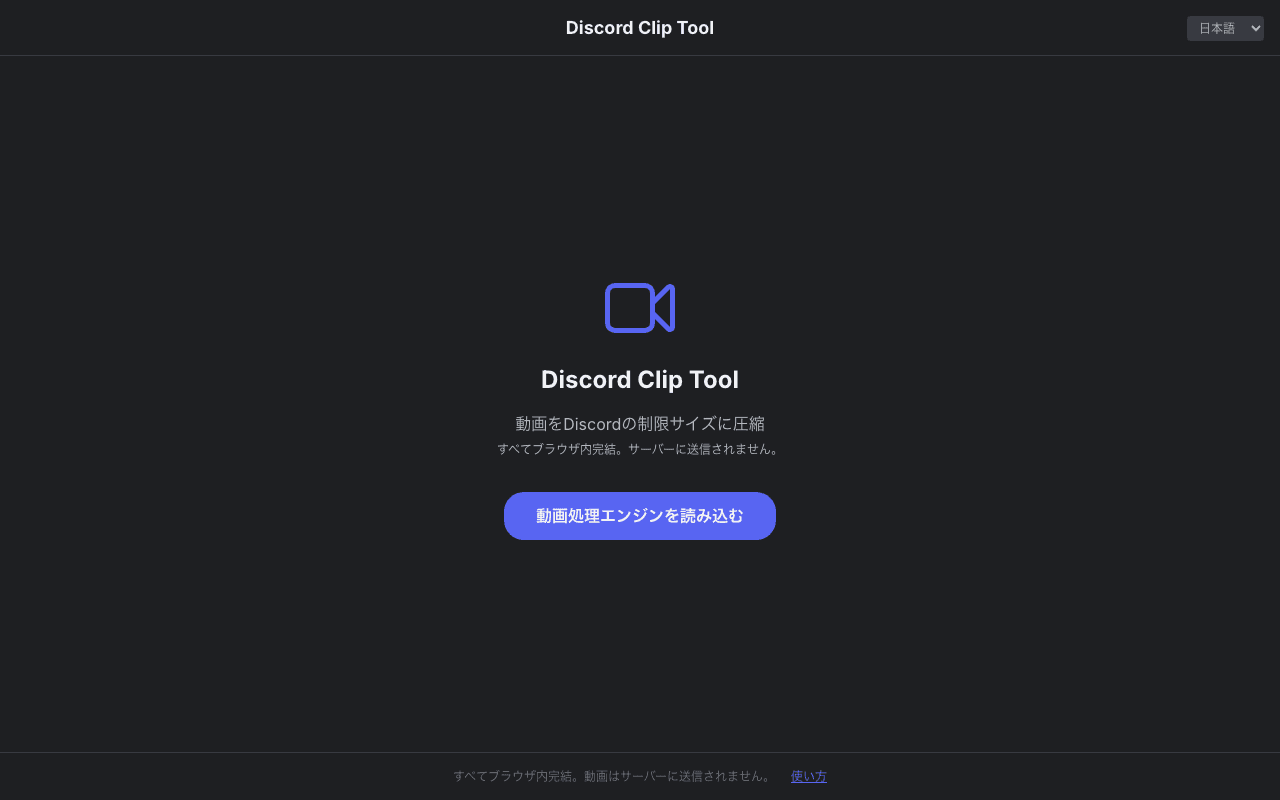
When you visit Discord Clip Tool, click the "Load video engine" button to get started. This downloads the video processing engine (FFmpeg WebAssembly) the first time. On subsequent visits, it loads instantly from cache.
Upload your video file
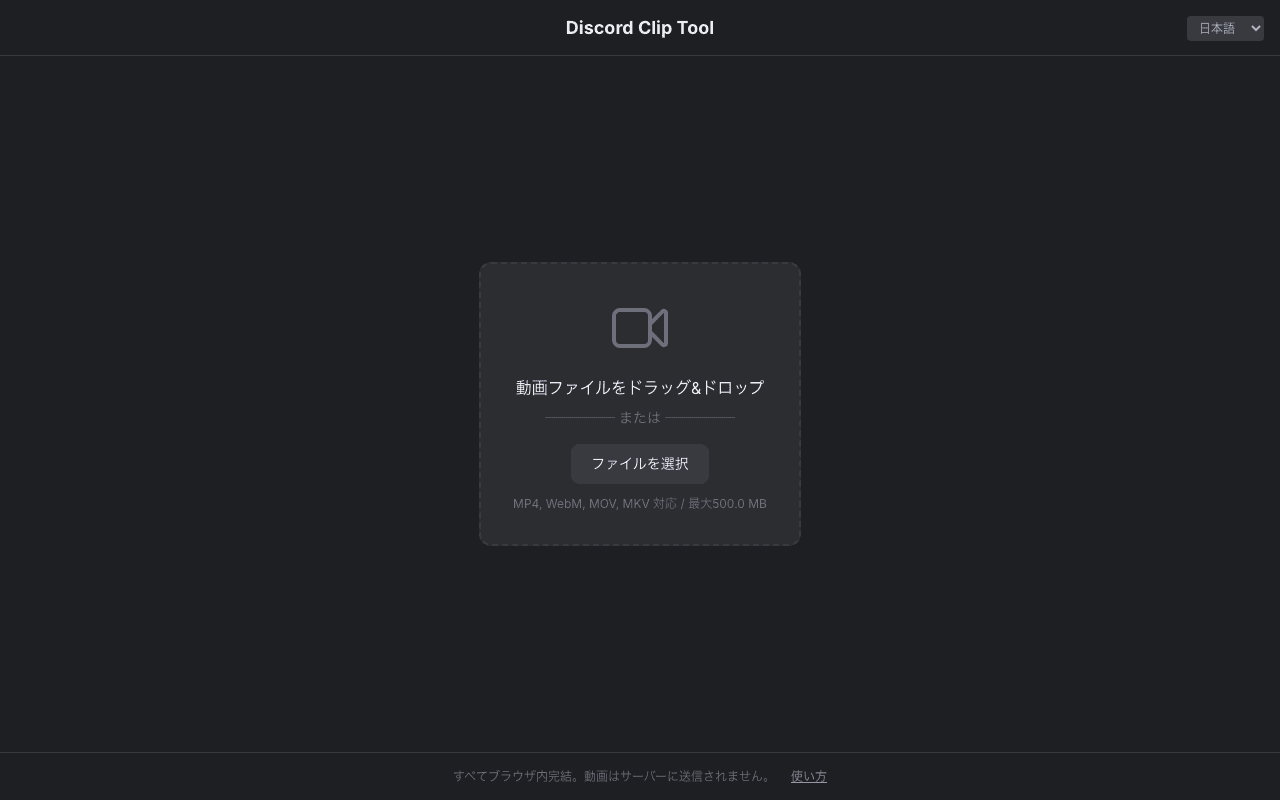
Once the engine is loaded, you'll see the upload screen. Drag and drop your video file onto the drop zone, or click "Browse file" to select it. Supports MP4, WebM, MOV, and MKV formats, up to 500MB.
Trim and adjust settings
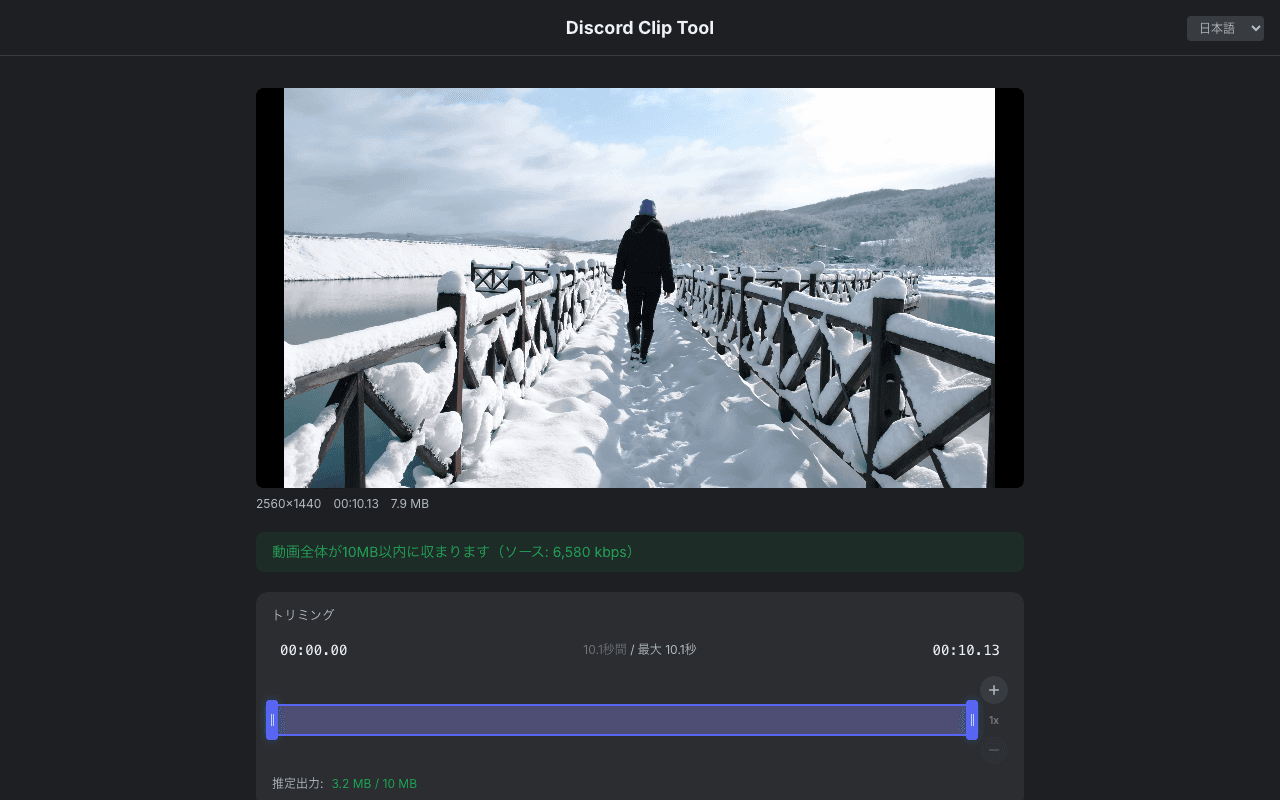
After loading the video, you'll see the editing screen where you can: - Trim: Drag the slider handles to select just the part you want - Target size: Choose 10MB (Free) / 25MB / 50MB / Custom to match Discord's limits - Mute audio: Check this to remove audio and further reduce file size Once you're happy with the settings, click "Create clip".
Wait for encoding to complete
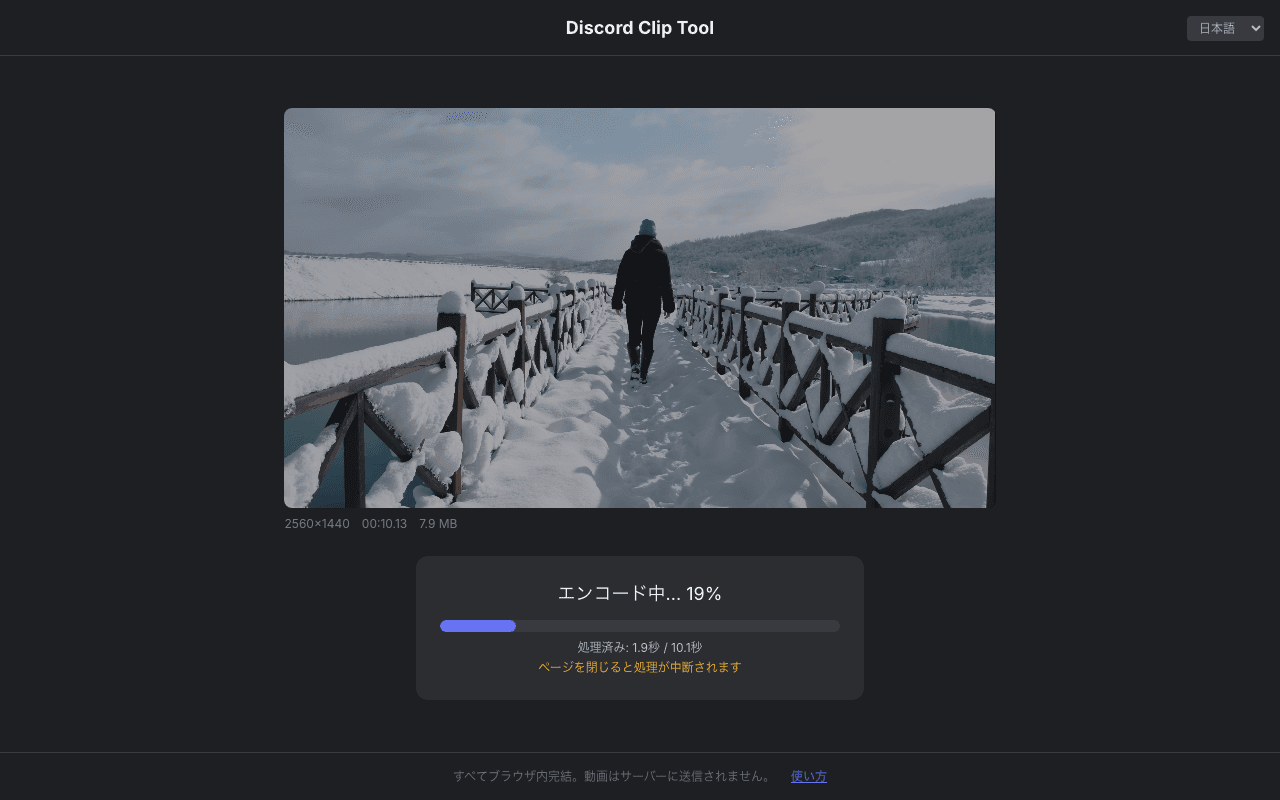
After clicking "Create clip", the video encoding starts directly in your browser. A progress bar shows the encoding status in real-time. Don't close the page during this step. For a 30-second clip, encoding typically takes a few seconds to about 15 seconds depending on your device.
Download your compressed video
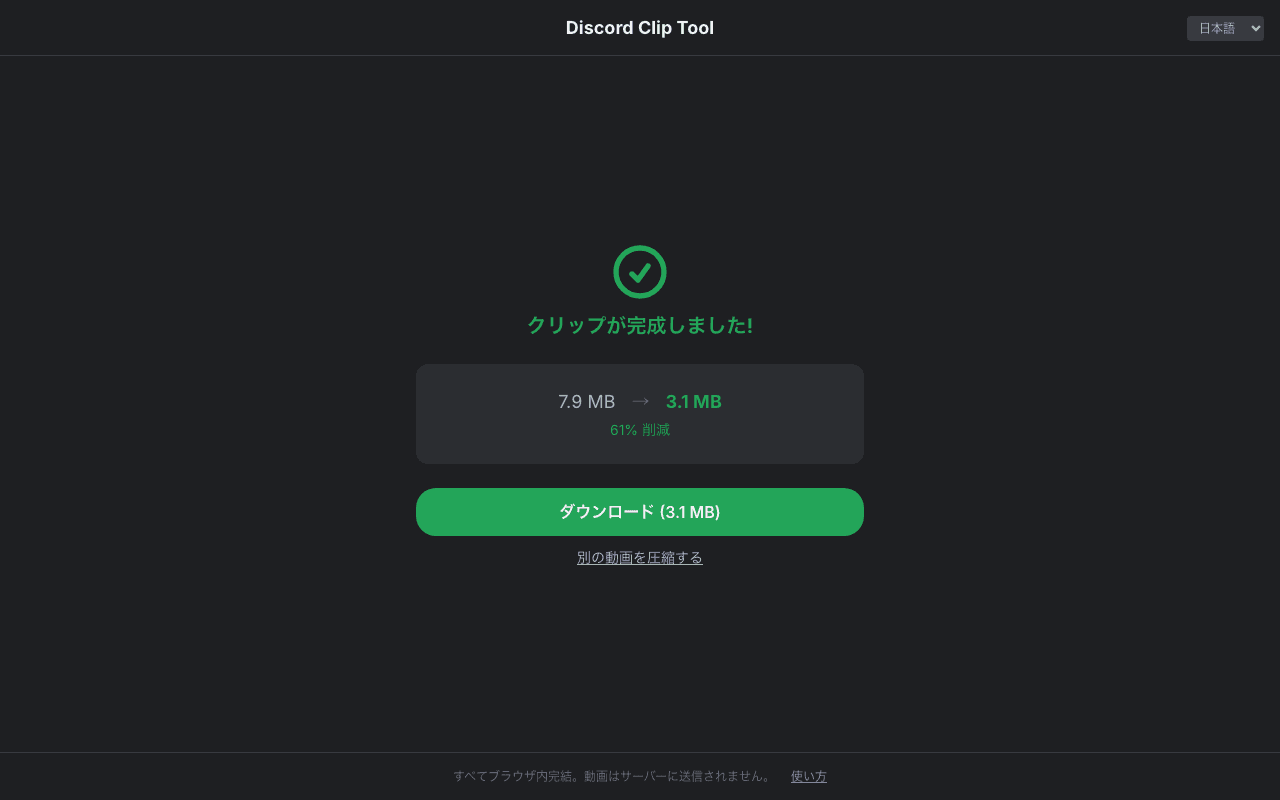
When encoding finishes, you'll see the original and compressed file sizes along with the reduction percentage. Click "Download" to save the MP4 file. Then simply drag and drop it into your Discord chat!
Tips for Better Results
- *If your video is too long, trim it to just the highlight — this preserves quality while staying under 25MB
- *Enable "Mute audio" when sound isn't needed to further reduce file size
- *Use the latest Chrome or Edge for multi-threaded processing and faster encoding
- *If processing fails, try restarting your browser and trying again